|
ReAlex |
|
|
Статус: Участник Группы: Участники
|
Добрый день. Столкнулся с проблемой при работе с ФГИС Зерно, они помочь не смогли или не захотели. Изначально имеем (на момент возникновения проблемы) ФГИС Зерно — только начинаем осваивать. Успешно подписали один пробный документ в Зерне, через несколько минут пробуем подписать второй — получаем ошибку Цитата: Невозможно использовать сертификат для электронной подписи документов: Невозможно проверить функцию отзыва, т.к. сервер отзыва сертификатов недоступен. (0x80092013) В процессе общения с техподдержкой обновили КриптоПро до последней сертифицированной версии и плагин до последней версии. Ну, обновили и обновили. Ничего плохого. Проблема не ушла. В трех других сервисах, требующих ЭЦП, работа продолжается без проблем. Куда копать? |
|
|
|
|
|
|
|
nickm |
|
|
Статус: Активный участник Группы: Участники Сказал(а) «Спасибо»: 613 раз |
Автор: ReAlex через несколько минут пробуем подписать второй — получаем ошибку Цитата: Невозможно использовать сертификат для электронной подписи документов: Невозможно проверить функцию отзыва, т.к. сервер отзыва сертификатов недоступен. (0x80092013) А в самом сертификате подобных свойств не имеется ли? Код: Код: |
|
|
|
|
ReAlex |
|
|
Статус: Участник Группы: Участники
|
Имеется. Скачал по указанному адресу список отзывов, установил его, ничего не изменилось. Это мы еще с техподдержкой Зерна сделали. |
|
|
|
|
nickm |
|
|
Статус: Активный участник Группы: Участники Сказал(а) «Спасибо»: 613 раз |
Автор: ReAlex Имеется Если имеется ссылка на «OCSP», то доступ по указанном пути должен осуществляться: https://ru.errorcode.pro/CRYPT_E_REVOCATION_OFFLINE Код: Проверьте, открывается ли у Вас ссылка до «OCSP»? |
|
|
|
|
ReAlex |
|
|
Статус: Участник Группы: Участники
|
В браузере открывается. Файлик скачивается. Остается выяснить, кому, кроме браузера, надо дать доступ к этому ресурсу. Службе SSTP? Какому-то модулю КриптоПро? |
|
|
|
|
nickm |
|
|
Статус: Активный участник Группы: Участники Сказал(а) «Спасибо»: 613 раз |
Автор: ReAlex В браузере открывается. Файлик скачивается. Остается выяснить, кому, кроме браузера, надо дать доступ к этому ресурсу У Вас имеется прокси/ VPN? |
|
|
|
|
ReAlex |
|
|
Статус: Участник Группы: Участники
|
Ну и остается вопрос, почему у ФГИС Зерно на этом месте возникает затык, а у СБИС, Меркурия и Честного Знака все нормально. |
|
|
|
|
ReAlex |
|
|
Статус: Участник Группы: Участники
|
Автор: nickm Автор: ReAlex В браузере открывается. Файлик скачивается. Остается выяснить, кому, кроме браузера, надо дать доступ к этому ресурсу У Вас имеется прокси/ VPN? Да, браузер настроен на классический веб-прокси. |
|
|
|
|
nickm |
|
|
Статус: Активный участник Группы: Участники Сказал(а) «Спасибо»: 613 раз |
Автор: ReAlex Ну и остается вопрос, почему у ФГИС Зерно на этом месте возникает затык, а у СБИС, Меркурия и Честного Знака все нормально. Сказать трудно, т.к. Вы не привели какой либо значимой информации и всё, что на данный момент стало известно — это лишь после того, как эту информацию вытянули из Вас. Возможно, Ваш прокси администрируется и на нём имеются необходимые разрешающие правила, а каких-то наоборот не имеется. Раз Вы работаете в организации, то такие вопросы, скорее, уместно задавать администраторам сервисов, в том числе и прокси. |
|
|
|
|
ReAlex |
|
|
Статус: Участник Группы: Участники
|
Автор: nickm Автор: ReAlex Ну и остается вопрос, почему у ФГИС Зерно на этом месте возникает затык, а у СБИС, Меркурия и Честного Знака все нормально. Сказать трудно, т.к. Вы не привели какой либо значимой информации и всё, что на данный момент стало известно — это лишь после того, как эту информацию вытянули из Вас. Возможно, Ваш прокси администрируется и на нём имеются необходимые разрешающие правила, а каких-то наоборот не имеется. Раз Вы работаете в организации, то такие вопросы, скорее, уместно задавать администраторам сервисов, в том числе и прокси. Все правильно. Но администратору надо знать, какой именно службе или программе не хватает доступа к ресурсу OCSP. |
|
|
|
| Пользователи, просматривающие эту тему |
|
Guest |
Быстрый переход
Вы не можете создавать новые темы в этом форуме.
Вы не можете отвечать в этом форуме.
Вы не можете удалять Ваши сообщения в этом форуме.
Вы не можете редактировать Ваши сообщения в этом форуме.
Вы не можете создавать опросы в этом форуме.
Вы не можете голосовать в этом форуме.
Расширенная диагностика проблем с подписанием
Предполагается, что
- КриптоПро на рабочем месте в порядке — лицензия установлена, сертификаты просматриваются, контейнеры тестируются;
- Ошибка, если она есть, не входит в список типовых
- Очистка кэша браузера проведена;
- И все равно подписание не работает: есть ошибки про статус сертификата/списки отзывов и/или сертификат недоступен для выбора в услуге, где требуется подписание документов.
1. Проверить работоспособность подписания в браузере.
На иллюстрации ниже : напротив нужного сертификата вместо кнопки «Подписать» указание на самые распространенные проблемы. К сожалению, страница браузера не может точнее указать — что именно сделать, поэтому требуется ручное вмешательство.
Результат теста может понадобится для дальнейшего общения с техподдержкой.

Дополнительно: страница для проверки работы подписания от КриптоПро, иногда полезно сравнить результаты: https://www.cryptopro.ru/sites/default/files/products/cades/demopage/cades_bes_file.html
2. Применить утилиту certutil
- Сохранить сертификат, который должен использоваться для подписания, в cer файл через «Просмотр сертификатов» в КриптоПро, например в c:\temp\cert.cer
- Открыть командную строку «Пуск → Выполнить → cmd»;
- В командной строке выполнить команду certutil -verify , указав путь до сертификата, например, certutil -verify c:\temp\cert.cer
- В выводе команды поискать слово ОШИБКА, проблема на этой строке или соседних. Если ошибок нет или непонятно что с ними делать — см следующий пункт.
- Диагностику можно вывести в текстовый файл: certutil -verify c:\temp\cert.cer > c:\temp\test_result.txt и прислать в нашу техподдержку для анализа.
3. Проверить списки отзывов
Проблемы со списком отзывов обычно выявляются в предыдущем пункте. Ошибка может звучать так:
ОШИБКА: проверка состояния отзыва сертификата вернула Невозможно проверить функцию отзыва, т.к. сервер отзыва сертификатов недоступен . 0x80092013 (-2146885613 CRYPT_E_REVOCATION_OFFLINE)CertUtil: Невозможно проверить функцию отзыва, т.к. сервер отзыва сертификатов недоступен .
Для нормальной работы подписания должны быть доступны списки отзывов сертификатов, ссылки на них присутствуют в самом сертификате, их там больше одной.
Для успешной проверки хотя бы одна должна работать:
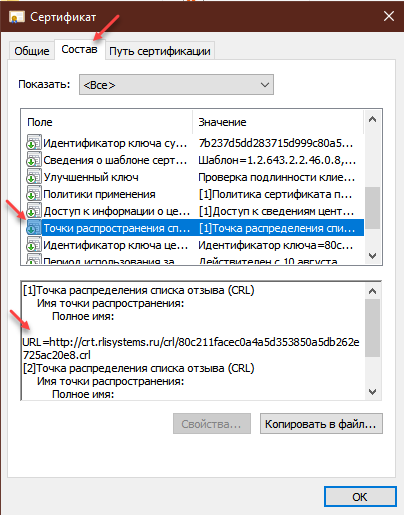
Ссылку открыть в браузере, должен скачаться файл. Скачанный список отзывов сертификата открыть (некоторые браузеры могут предупреждать , что это какой-то нехороший файл, но это не так)
В файле есть две даты, и текущая дата должна быть между ними:
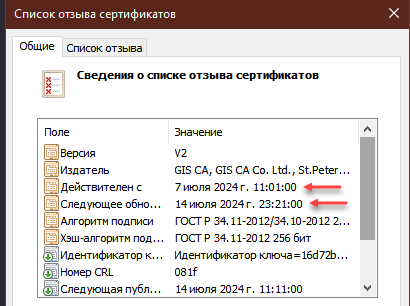
Если это не так — проверить на другом рабочем месте. Если список отзыва действительно устарел — сообщайте в техподдержку.
4. Решение проблем с корневыми сертификатами
Этот пункт нужен, если в п.2 выявлены проблемы с корневыми или поддержка порекомендовала его сделать.
Устанавливать корневые сертификаты рекомендуется только установщиком с сайта. При ручной установке иногда возникает труднодиагностируемая ситуация, когда вроде бы все правильно выглядит, но подписание не работает. Certutil -verify обычно выявляет эту проблему.
Процедура переустановки:
- Удалить все сертификаты, изданные GIS CA, во всех разделах — «Доверенные корневые центры сертификации», «Промежуточные центры сертификации», в реестре текущего пользователя и компьютера (если есть права). Убедиться, что их нет не только в «доверенных корневых», но и в «промежуточных» и личных.
- Скачать и заново прогнать установщик корневых https://www.rlisystems.ru/Download/x86/roliscertsetup.exe
- Очистить кэш браузера
- В командной строке выполнить certutil -urlcache crl delete
Пробовать подписать.
5. Решение проблем с КриптоПро
Этот пункт нужен, если все остальное уже проверено.
Обычно достаточно провести проверку подписания (п.1 на этой странице) но, к сожалению, были случаи, когда тестовое подписание проходило, а настоящее — нет, и это решалось восстановлением работоспособности КриптоПро.
Запустить КриптоПро с правами администратора. Есть вот эта кнопка активна — нажать.
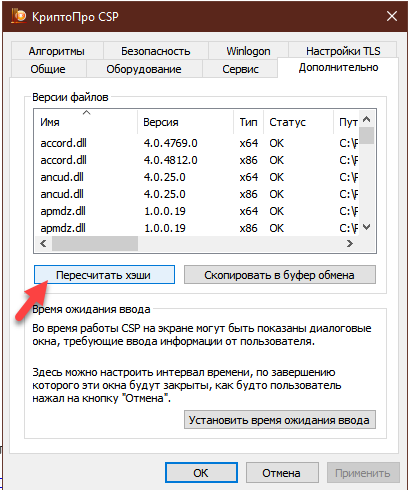
В некоторых случаях помогает только процедура переустановки или восстановления Она быстрая и несложная, но требует прав Администратора:
- Панель управления — Программы и компоненты — найти КриптоПро CSP, выделить эту строку и в верхней части окна нажать «Восстановить».
В этом случае не понадобится заново вводить лицензию. Перезагрузка — если попросит.
В разных версиях Windows 10/11 названия пунктов могут отличаться, смысл тот же — запустить режим восстановления КриптоПро. - Если не помогло: удалить КриптоПро CSP, перезагрузить ПК, установить КриптоПро CSP, еще раз перезагрузить ПК. Потребуется повторный ввод лицензии.
Applies ToWindows Vista Business Windows Vista Enterprise Windows Vista Home Basic Windows Vista Home Premium Windows Vista Starter Windows Vista Ultimate Windows Server 2008 Datacenter Windows Server 2008 Datacenter without Hyper-V Windows Server 2008 Enterprise Windows Server 2008 Enterprise without Hyper-V Windows Server 2008 for Itanium-Based Systems Windows Server 2008 Foundation Windows Server 2008 Standard Windows Server 2008 Standard without Hyper-V
Symptoms
Consider the following scenario:
-
You request a certificate from a computer that is running Windows Server 2008 or Windows Vista.
-
You build multiple certificate chains for the certificate.
-
One certificate chain has a revoked certificate.Note The other certificate chains are good.
-
You try to verify the certificate.
In this scenario, certificate validation fails and you receive the following error message:
0x80092013, CRYPT_E_REVOCATION_OFFLINE, The revocation function was unable to check revocation because the revocation server was offline
Cause
This issue occurs because some status bits are carried over incorrectly to the validation of other chains if the chain that has a revoked certificate is validated first.
Resolution
Hotfix information
A supported hotfix is available from Microsoft. However, this hotfix is intended to correct only the problem that described in this article. Apply this hotfix only to systems that are experiencing the problem described in this article. This hotfix might receive additional testing. Therefore, if you are not severely affected by this problem, we recommend that you wait for the next software update that contains this hotfix.
If the hotfix is available for download, there is a «Hotfix download available» section at the top of this Knowledge Base article. If this section does not appear, contact Microsoft Customer Service and Support to obtain the hotfix.
Note If additional issues occur or if any troubleshooting is required, you might have to create a separate service request. The usual support costs will apply to additional support questions and issues that do not qualify for this specific hotfix. For a complete list of Microsoft Customer Service and Support telephone numbers or to create a separate service request, visit the following Microsoft website:
http://support.microsoft.com/contactus/?ws=supportNote The «Hotfix download available» form displays the languages for which the hotfix is available. If you do not see your language, it is because a hotfix is not available for that language.
Prerequisites
To apply this hotfix, you must be running one of the following operating systems:
-
Windows Vista Service Pack 1 (SP1)
-
Windows Vista Service Pack 2 (SP2)
-
Windows Server 2008
-
Windows Server 2008 Service Pack 2 (SP2)
For more information about how to obtain a Windows Vista service pack, click the following article number to view the article in the Microsoft Knowledge Base:
935791 How to obtain the latest Windows Vista service pack
For more information about how to obtain a Windows Server 2008 service pack, click the following article number to view the article in the Microsoft Knowledge Base:
968849 How to obtain the latest service pack for Windows Server 2008
Registry information
To use the hotfix in this package, you do not have to make any changes to the registry.
Restart requirement
You must restart the computer after you apply this hotfix.
Hotfix replacement information
This hotfix does not replace a previously released hotfix.
File information
The global version of this hotfix installs files that have the attributes that are listed in the following tables. The dates and the times for these files are listed in Coordinated Universal Time (UTC). The dates and the times for these files on your local computer are displayed in your local time together with your current daylight saving time (DST) bias. Additionally, the dates and the times may change when you perform certain operations on the files.
Windows Vista and Windows Server 2008 file information notes
Important Windows Vista hotfixes and Windows Server 2008 hotfixes are included in the same packages. However, only «Windows Vista» is listed on the Hotfix Request page. To request the hotfix package that applies to one or both operating systems, select the hotfix that is listed under «Windows Vista» on the page. Always refer to the «Applies To» section in articles to determine the actual operating system that each hotfix applies to.
-
The files that apply to a specific product, SR_Level (RTM, SPn), and service branch (LDR, GDR) can be identified by examining the file version numbers as shown in the following table.
Version
Product
SR_Level
Service branch
6.0.600 2. 22xxx
Windows Vista and Windows Server 2008
SP2
LDR
-
Service Pack 1 is integrated into the release version of Windows Server 2008. Therefore, RTM milestone files apply only to Windows Vista. RTM milestone files have a 6.0.0000.xxxxx version number.
-
The MANIFEST files (.manifest) and the MUM files (.mum) that are installed for each environment are listed separately in the «Additional file information for Windows Server 2008 and for Windows Vista» section. MUM files and MANIFEST files, and the associated security catalog (.cat) files, are extremely important to maintain the state of the updated components. The security catalog files, for which the attributes are not listed, are signed with a Microsoft digital signature.
For all supported x86-based versions of Windows Server 2008 and of Windows Vista
|
File name |
File version |
File size |
Date |
Time |
|---|---|---|---|---|
|
Crypt32.dll |
6.0.6002.22739 |
978,944 |
06-Nov-2011 |
00:03 |
For all supported x64-based versions of Windows Server 2008 and of Windows Vista
|
File name |
File version |
File size |
Date |
Time |
|---|---|---|---|---|
|
Crypt32.dll |
6.0.6002.22739 |
1,260,544 |
07-Nov-2011 |
09:13 |
For all supported IA-64–based versions of Windows Server 2008
|
File name |
File version |
File size |
Date |
Time |
|---|---|---|---|---|
|
Crypt32.dll |
6.0.6002.22739 |
2,374,144 |
06-Nov-2011 |
17:49 |
Status
Microsoft has confirmed that this is a problem in the Microsoft products that are listed in the «Applies to» section.
More Information
For more information about software update terminology, click the following article number to view the article in the Microsoft Knowledge Base:
824684 Description of the standard terminology that is used to describe Microsoft software updates
For more information about a similar issue, click the following article number to view the article in the Microsoft Knowledge Base:
2615174 «0x80092013, CRYPT_E_REVOCATION_OFFLINEA» error message when you try to verify a certificate that has multiple chains in Windows Server 2008 R2 or in Windows 7
Additional file information
Additional file information for Windows Vista and for Windows Server 2008
Additional files for all supported x86-based versions of Windows Vista and of Windows Server 2008
|
File name |
X86_57ba57d1b24608bdc8cd9d109dd4df31_31bf3856ad364e35_6.0.6002.22739_none_dca4e57bc461ad59.manifest |
|
File version |
Not applicable |
|
File size |
699 |
|
Date (UTC) |
07-Nov-2011 |
|
Time (UTC) |
12:24 |
|
File name |
X86_microsoft-windows-crypt32-dll_31bf3856ad364e35_6.0.6002.22739_none_5dc8747af427da09.manifest |
|
File version |
Not applicable |
|
File size |
7,228 |
|
Date (UTC) |
06-Nov-2011 |
|
Time (UTC) |
00:26 |
Additional files for all supported x64-based versions of Windows Vista and of Windows Server 2008
|
File name |
Amd64_30a1d822b55b97be9cc7233f2a29f433_31bf3856ad364e35_6.0.6002.22739_none_abbdde180fe452d6.manifest |
|
File version |
Not applicable |
|
File size |
1,046 |
|
Date (UTC) |
07-Nov-2011 |
|
Time (UTC) |
12:24 |
|
File name |
Amd64_microsoft-windows-crypt32-dll_31bf3856ad364e35_6.0.6002.22739_none_b9e70ffeac854b3f.manifest |
|
File version |
Not applicable |
|
File size |
7,258 |
|
Date (UTC) |
07-Nov-2011 |
|
09:36 |
Time (UTC)
Additional files for all supported IA-64–based versions of Windows Server 2008
|
File name |
Ia64_de074ca5c22f223d9f178e1cc6bcb00f_31bf3856ad364e35_6.0.6002.22739_none_44a8eafc385578c3.manifest |
|
File version |
Not applicable |
|
File size |
1,044 |
|
Date (UTC) |
07-Nov-2011 |
|
Time (UTC) |
12:24 |
|
File name |
Ia64_microsoft-windows-crypt32-dll_31bf3856ad364e35_6.0.6002.22739_none_5dca1870f425e305.manifest |
|
File version |
Not applicable |
|
File size |
7,243 |
|
Date (UTC) |
06-Nov-2011 |
|
Time (UTC) |
18:03 |
Need more help?
Want more options?
Explore subscription benefits, browse training courses, learn how to secure your device, and more.
Ситуация следующая. Имеются два центра сертификации (Certification Authority, CA) — Offline Root CA (корневой) и Enterprise Subordinate CA (подчиненный). Схема стандартная, подчиненный CA занимается выпуском сертификатов, корневой стоит в выключенном состоянии и включается только для обновления своего сертификата, сертификата подчиненного CA и списка отзыва (Certificate Revocation List, CRL).
И вот, после очередного обновления сертификата подчиненного CA он отказался включаться и выдал ошибку 0x80092013 (CRYPT_E_REVOCATION_OFFLINE). В сообщении об ошибке сказано, что функция отзыва не может проверить список отзыва, поскольку сервер отзыва недоступен. Эта ошибка возникает в следующих ситуациях:
• Недоступен список отзыва (CRL);
• Не опубликовано местоположение CRL;
• Истек срок действия CRL.
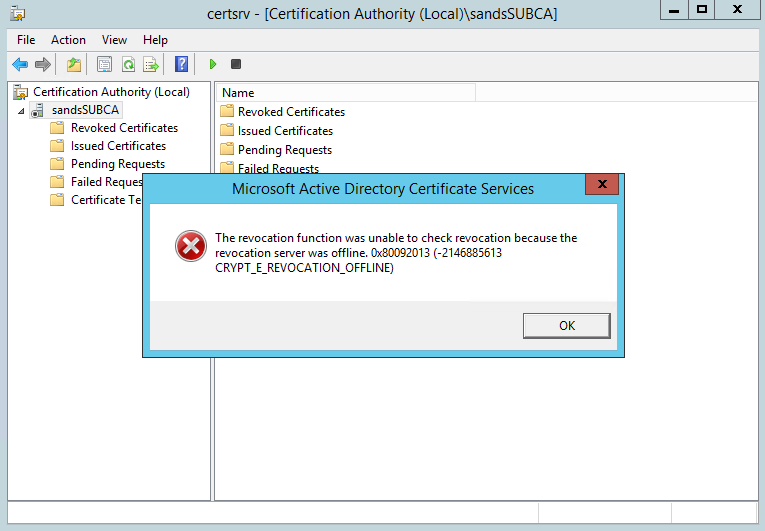
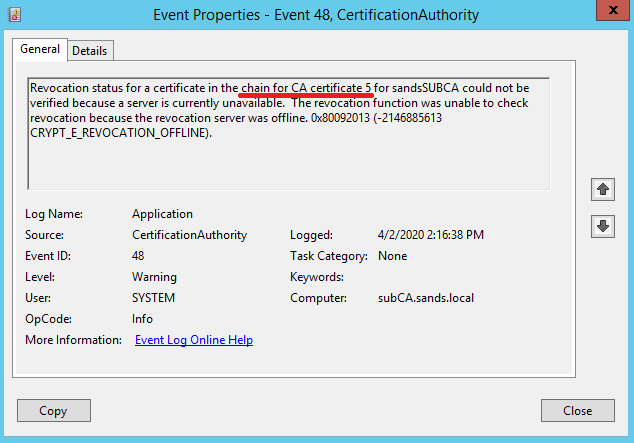
Порывшись в системном журнале, нашел ошибку с Event ID 48. Из сообщения видно, что для сертификата 5 не удается проверить цепочку доверия.
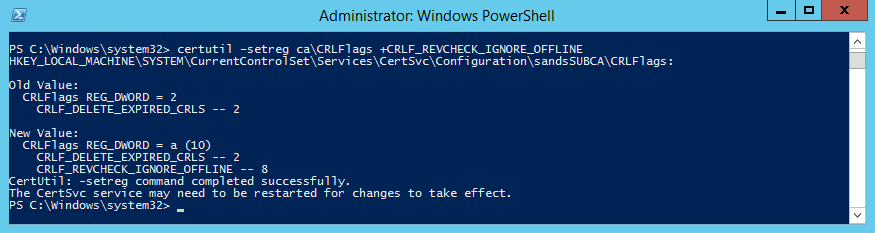
Для того, чтобы посмотреть на этот сертификат, нам надо запустить CA. Поэтому временно отключим проверку CRL командой:
certutil –setreg ca\CRLFlags +CRLF_REVCHECK_IGNORE_OFFLINE
Теперь запускаем CA, кликаем правой клавишей на сервере и выбираем пункт меню «Properties».
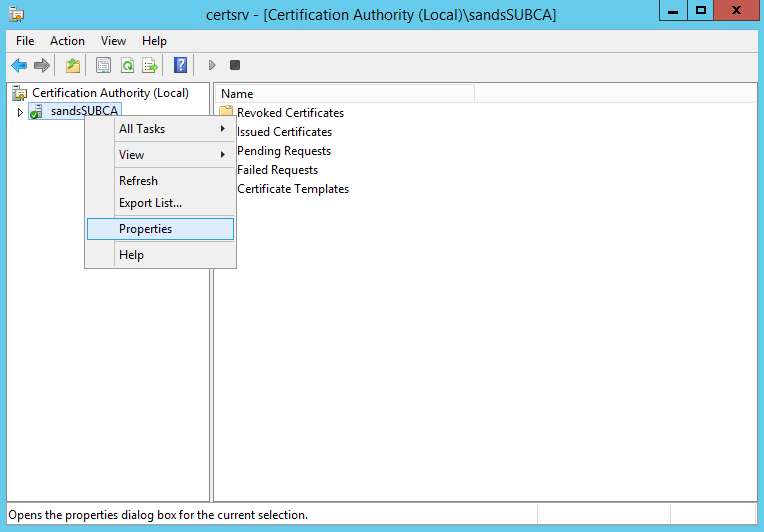
Открывается окно свойств CA. На вкладке «General» находим список сертификатов, выбираем нужный и жмем «View Certificate».
В свойствах сертификата находим строчку «CRL Distribution Points» с адресами, по которым должен находится список отзыва. Адресов два — файловая шара на корневом CA и веб-сайт на подчиненном CA. И как и следовало ожидать, ни по одному из адресов CRL не доступен.
Для нормальной работы нам нужно найти актуальный CRL. Идем на корневой CA, открываем оснастку «Certification Authority» — «Properties», переходим на вкладку «Extensions» и выбираем из списка расширение «CRL Distribution Point (CDP)». В нем находится список мест, в которых публикуется список отзыва. Что интересно, в списке есть и подчиненный CA, но по какой то причине CRL на него не попал.
В данной ситуации самое простое, что можно сделать — это вручную разместить CRL в указанном месте. Находим на корневом CA файл CRL, проверяем его актуальность и копируем на подчиненный.
Затем включаем обратно проверку:
certutil –setreg ca\CRLFlags -CRLF_REVCHECK_IGNORE_OFFLINE
и рестартуем сервис:
Restart-Service certsvc -force
Сервис стартует успешно, значит все сделано правильно.

When you deploy a standalone root CA (certainly offline, if you follow Microsoft’s best practices), as well as multiple subordinate CAs, your infrastructure may suddenly stop working one day.
This is because when you take your standalone root CA offline, you must manually publish and update that CA’s revocation list in your Active Directory infrastructure.
If you forget to do this, all your subordinate CAs under this standalone root CA will stop working when your root CA’s revocation list expires.
- Encountered problem
- Expired root CA revocation list
- Change the validity period of your root CA’s certificate revocation list
- Update the certificate revocation list in your Active Directory
- Start your secondary CA
1. Encountered problem
On one of your secondary CAs, you notice that it’s not started.
So, you try to start it manually.
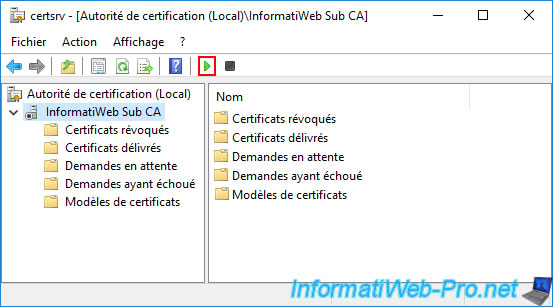
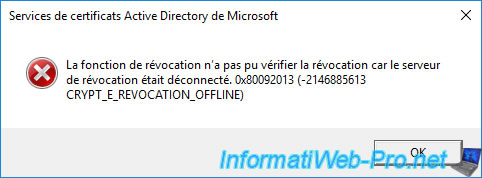
Your secondary CA refuses to start and this error appears :
Plain Text
The revocation function was unable to check the revocation because the revocation server was offline. 0x80092013 (-2146885613 CRYPT_E_REVOCATION_OFFLINE).
This error tells you that your subordinate CA could not check for revocation of its certificate because your standalone root CA is not reachable.
Which is normal since you keep it offline for security reasons.
If your subordinate CA is trying to re-download your standalone root CA’s revocation list, it’s because the previously published copy in your Active Directory infrastructure has expired.
2. Expired root CA revocation list
To see this revocation list, you can use the «Active Directory Sites and Services» console of your domain controller.
In this console, click on «View -> Show Services Node» to display the «Services» node of this console.
Then, go to : Services -> Public Key Services -> CDP -> [root CA server name].
As you can see, your root CA’s certificate revocation list is there.
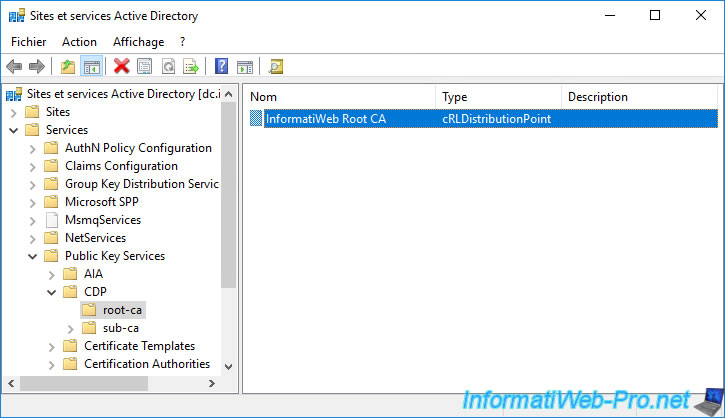
In our case, this revocation list was published manually in the Active Directory on 04/16/2022.
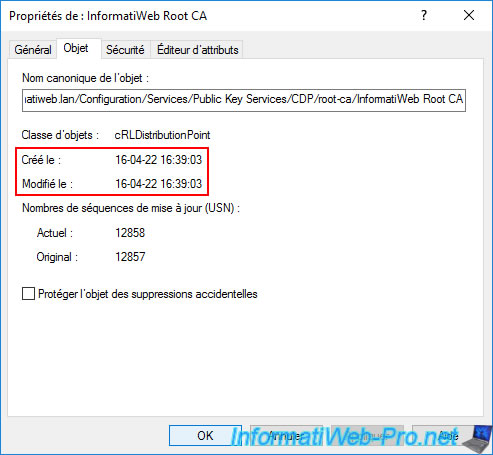
Which corresponds to the file below that we had published in the AD previously.
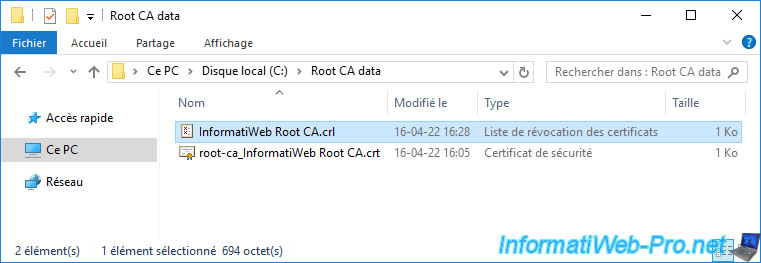
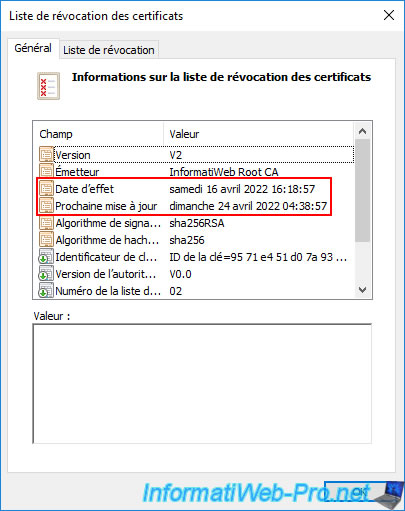
As you can see, this one was created on 04/16/2022 and this one is due to be updated on April 24th.
In other words, it expires on that day.
Because this certificate revocation list of your root CA has expired, you receive an error regarding revocation checking on your subordinate CA.
3. Change the validity period of your root CA’s certificate revocation list
To prevent this revocation error from appearing in the future, you can change the validity period of your root CA’s certificate revocation list.
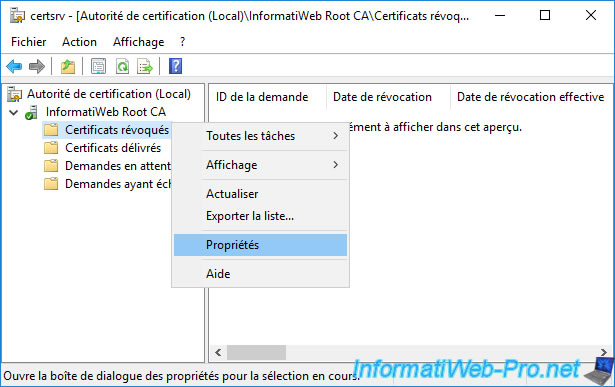
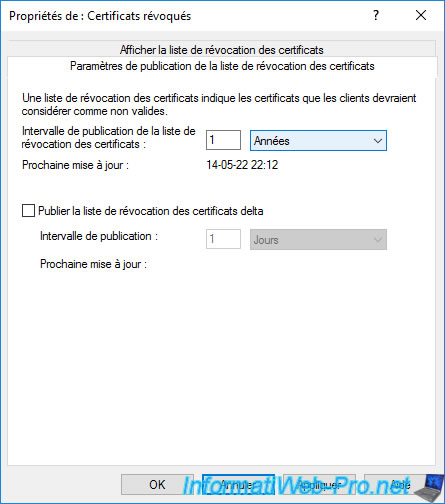
To do this, on this root authority, right-click «Properties» on the «Revoked Certificates» folder.
As you can see, in our case, we left the default «1 week».
Which is obviously too low, because it means you’ll have to start your standalone root CA every week (minus 1 day) to manually publish the new CRL to your Active Directory infrastructure.
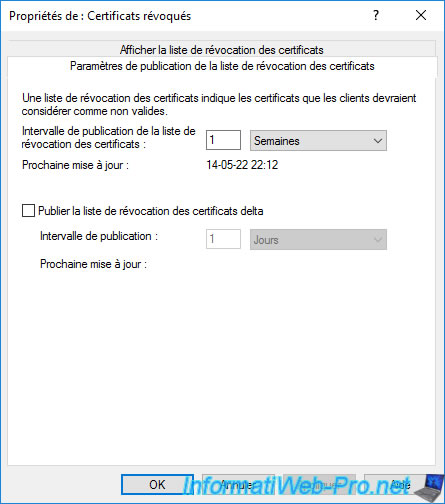
To solve the problem, it’s advisable to extend this publication interval to 6 months or 1 year (for example).
Thus, you will need to start this standalone root CA and manually republish its revocation list only once or twice a year.
Click «Apply» to save this change.
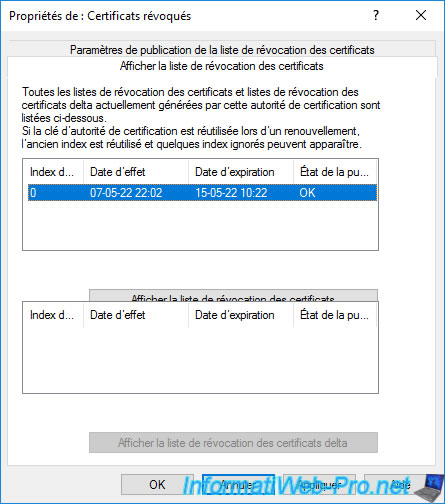
Then, if you go to the «View CRLs» tab, you will see that a new full CRL has already been generated by your standalone root CA since the old one was expired.
However, this is only valid for one week (by default).
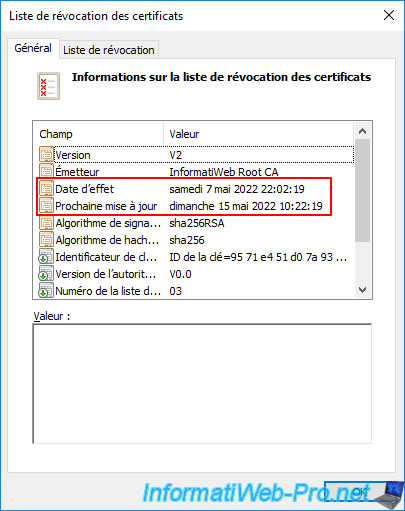
You can get more information about this revocation list by clicking the «View CRL» button.
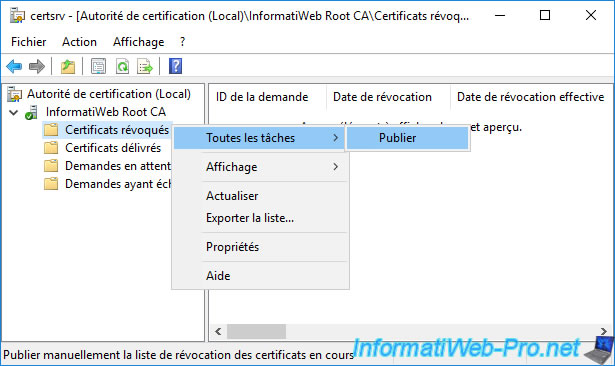
To use the new publishing interval, you will need to manually publish (once) the new CRL.
To do this, right-click «All Tasks -> Publish» on «Revoked Certificates».
On a standalone root CA, you can only generate a certificate revocation list (CRL).
So, just click OK.
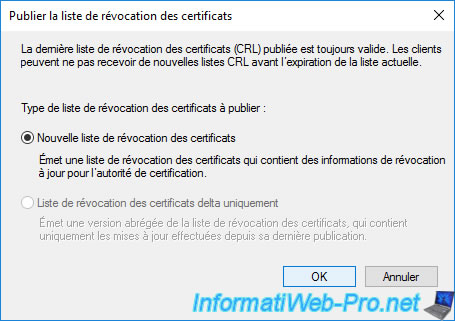
Then, right-click «Properties» on «Revoked Certificates».
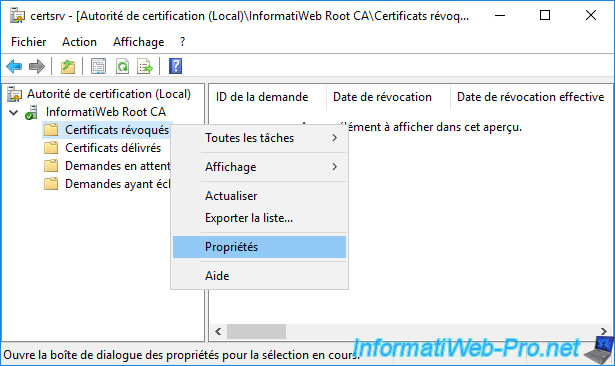
In the «View CRLs» tab, you will see that the CRL has been updated.
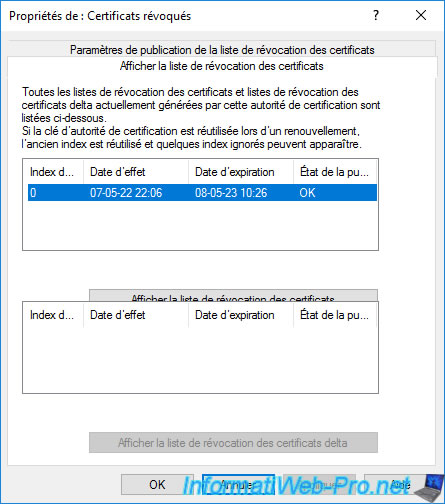
If you click on the «View CRL» button, you will see that it’s valid for 1 year.
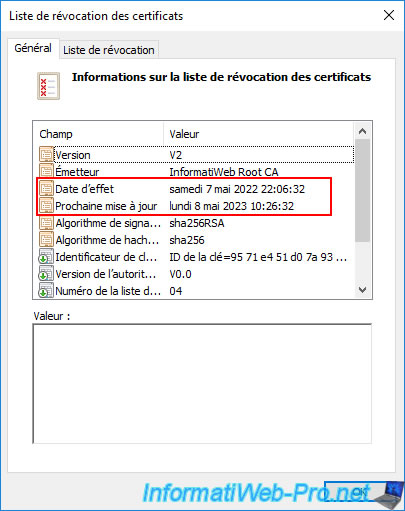
As usual, you will find this new revocation list in the «C:\Windows\System32\CertSrv\CertEnroll» folder of your standalone root certification authority.
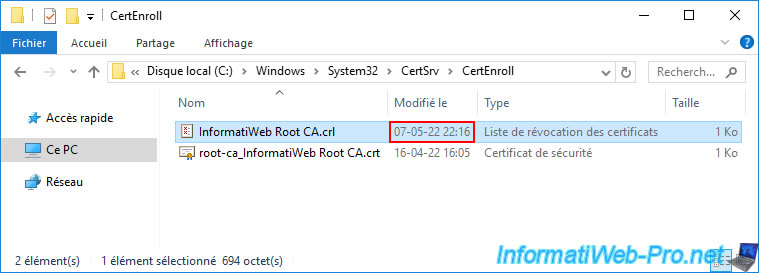
If you double click on it, you will see that it’s the same revocation list.
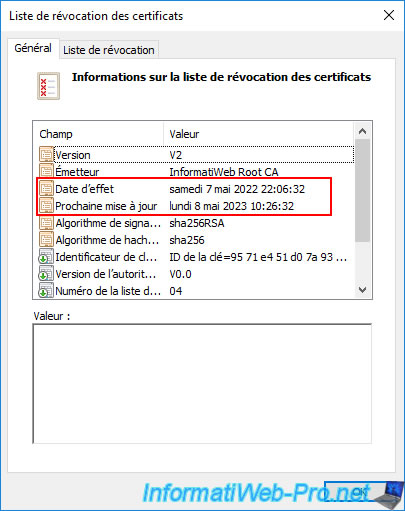
4. Update the certificate revocation list in your Active Directory
Now that you’ve generated a new CRL from your standalone root CA console, you need to update the one in your Active Directory infrastructure.
To do this, transfer the corresponding «.crl» file to one of your domain controllers (using an USB key, for example).
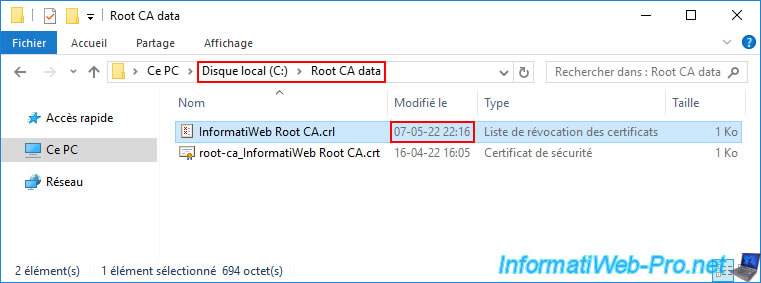
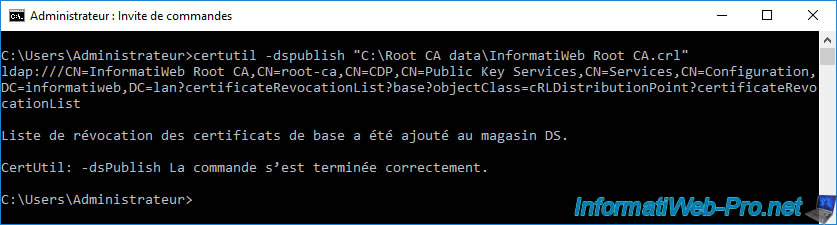
Then, use the command below to publish this certificate revocation list to your Active Directory infrastructure.
Batch
certutil -dspublish "C:\Root CA data\InformatiWeb Root CA.crl"
Return to the «Active Directory Sites and Services» console and go to the folder : Services -> Public Key Services -> CDP -> [root CA server name].
As you can see, the «cRLDistributionPoint» type object is still present.
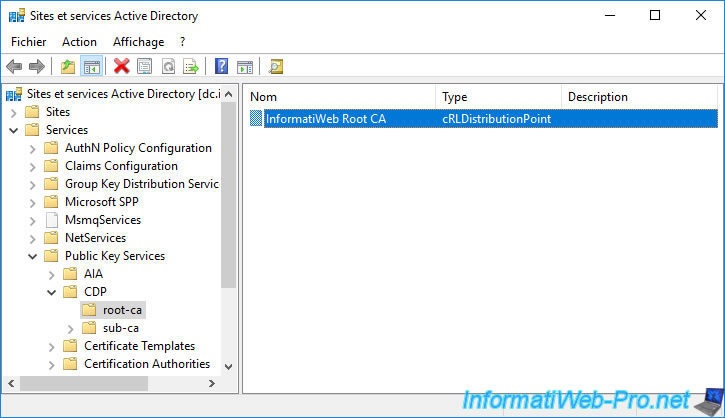
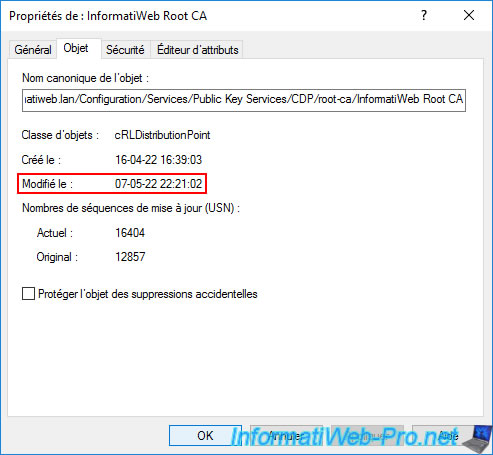
But if you double click on it, you will see that the modified date has been updated.
This means that the revocation list present in the Active Directory has been replaced by the new one.
5. Start your secondary CA
Now that your standalone root CA’s revocation list has been updated in your Active Directory infrastructure, you can start your secondary CA.
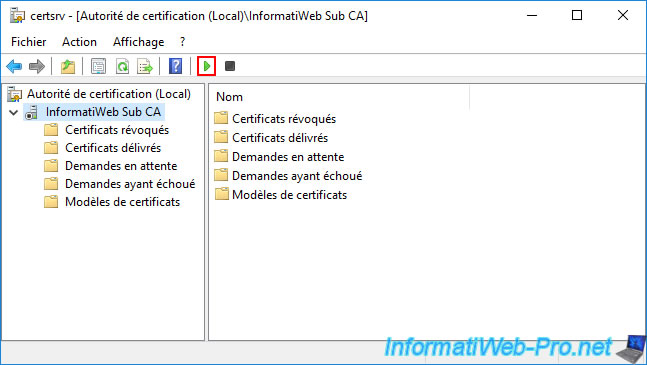
Wait while it starts.
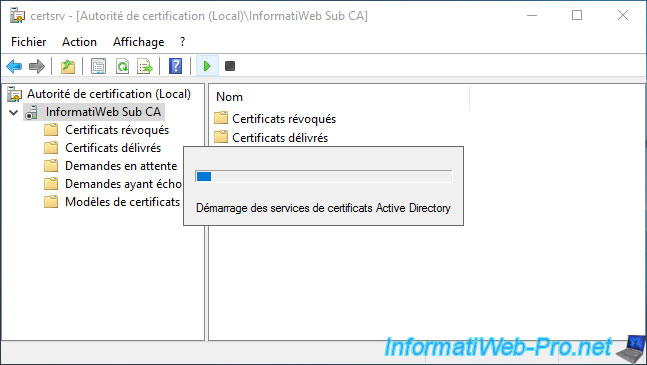
As expected, your subordinate CA started without issue.